Blocked by robots.txt: What It Means + How to Fix It
“Blocked by robots.txt” in Google Search Console means your robots.txt is telling Google not to crawl this page. Here's when it's intentional, when it's a problem, and exactly how to fix it.
“Blocked by robots.txt” means a Disallow rule in your robots.txt is stopping Googlebot from crawling the URL. The whole fix is one decision: should this page rank? If yes, remove or narrow the rule. If no, robots.txt is the wrong tool — it blocks crawling, not indexing, so use noindex or auth instead.
This status isn't a verdict on your page — it's a locked door. Google found the URL, walked up to it, and a Disallow line in your robots.txt turned it away before it could read a single word. Nothing about the page's quality was ever evaluated, because Google never got inside.
So there's no SEO tactic to apply here. There's one question: was this block on purpose? If the page is admin junk or a duplicate, leave it. If it's a page you want ranking, you're accidentally hiding it from search. The rest of this guide helps you tell which, find the exact rule, and fix it without breaking something else.
The trap most people fall into
The instinct when you see this status is to treat robots.txt like an off-switch for search visibility. It isn't. robots.txt controls crawling, not indexing — and those are different things.
A blocked URL can still end up in Google's index. If other sites link to it, Google can list the URL based on those links alone, with no snippet and a “No information is available for this page” note. That's a separate status — Indexed, though blocked by robots.txt — and it's exactly why blocking is a bad way to keep something out of search.
The other half of the trap: if a page already has a noindex tag and you also robots.txt-block it, Google can never crawl the page to see the noindex. The tag is invisible. The block defeats the very thing you were trying to do.
The mental model that fixes everything: robots.txt is a “don't read this” sign on the door. noindex is a “you can read it, just don't list it” note inside. To keep a page out of search, Google has to be allowed in to read the note — so blocking and noindex are mutually exclusive, not a combo.
Is your block intentional or a mistake?
Run the blocked URL against these. The first match tells you whether to walk away or fix it.
It's intentional — leave it blocked
robots.txt is doing its job when it's keeping crawlers out of pages that should never be in search anyway:
- Admin and auth screens (
/admin/,/login/,/wp-admin/) - Cart, checkout, and account pages
- Internal search-result pages and faceted-filter URLs (
?sort=,?color=) that spawn endless low-value combinations - Staging or internal tooling paths
Tell: the URL is something you'd never want a stranger to land on from Google, and it has no business ranking. Blocking it also saves crawl budget. Move on.
It's a mistake — fix it
The block is a problem when it's swallowing pages you actually want found:
- A whole section gone because someone wrote
Disallow: /blog/ - SEO landing or service pages that don't show up in search
- Product pages that vanished after a redesign or CMS migration
- A
Disallow: /left in place from a staging environment that got pushed live
Tell: the URL is content you'd happily show a customer, and you can't figure out why it's not getting traffic. That last bullet — Disallow: / shipped from staging — is the catastrophic one; it blocks your entire site.
Find the exact rule that's blocking it
Don't guess which line is the culprit — GSC will name it for you.
Open URL Inspection, paste the affected URL, and look at the Page indexing detail. When robots.txt is the cause, it reports “Blocked by robots.txt” and, under the crawl details, shows Crawl allowed: No along with the specific disallowing rule. That's your offending line, quoted back to you.
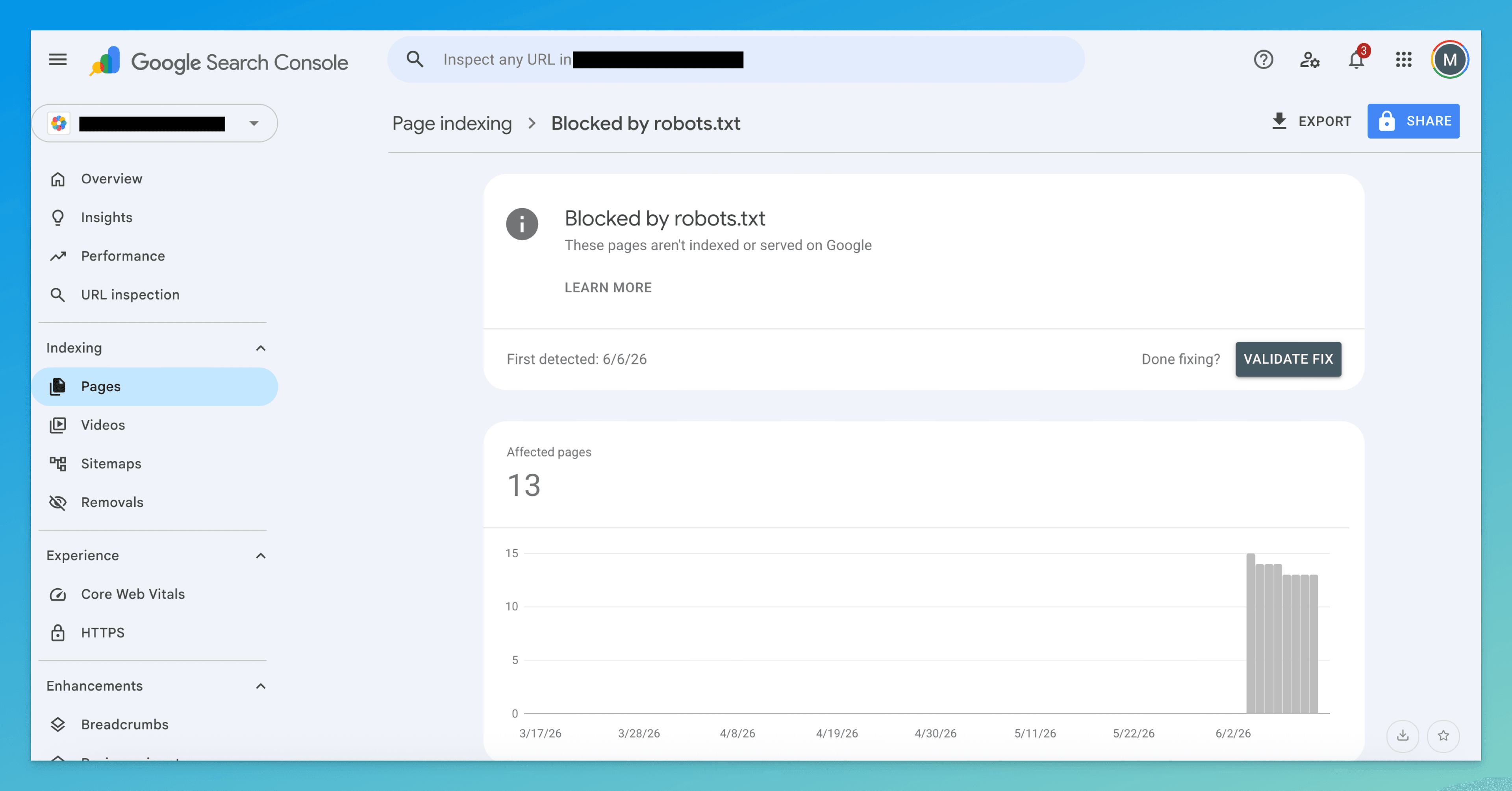
To see the file in full, open https://yourdomain.com/robots.txt directly in a browser and scan for Disallow: lines whose path matches your URL. Remember the rules are evaluated by longest-match — a later, more specific Allow: can override a broad Disallow:, so read the whole relevant block, not just the first match.
Fix it
You only need the steps that fit your case — most fixes are a one- or two-line change to robots.txt.
- Decide first: should this page be in search at all?
This is the whole fork. If the page should rank, you're removing a block (steps below). If the page should stay private, do not rely on robots.txt — skip to the noindex/auth step. Getting this decision right is the entire job; the edits are trivial once you've made it.
- Remove or narrow the Disallow rule
If the page should be crawlable, edit
robots.txt. Either delete the offendingDisallow:line, or keep the broad block and carve out an exception withAllow:(which wins on a longer path match):User-agent: * Disallow: /resources/ Allow: /resources/the-page-you-want/Avoid the blunt-instrument version —
Disallow: /blog/to hide three posts takes out your entire blog. Block the specific paths that need hiding, not whole sections. - If it should stay private, use the right tool instead
robots.txt is the wrong way to keep a page out of search, because blocking doesn't reliably deindex and a still-indexed blocked URL leaks its existence anyway. Pick by goal:
- Keep it out of the index, but it can be public: allow crawling and add a
noindextag. Google must be able to crawl the page to see it.
<meta name="robots" content="noindex" />- Genuinely sensitive (account data, internal tools): put it behind authentication or remove it. robots.txt is a public file — listing a secret path in it just advertises where your private pages live.
- Keep it out of the index, but it can be public: allow crawling and add a
- Re-test crawl access before requesting indexing
After editing, re-run URL Inspection and click Test live URL. You want Crawl allowed: Yes. If it still says No, the file you edited isn't the one Google fetched (CDN cache, wrong subdomain, or a stale deploy) — fix that before going further.
- Then request indexing
With crawl access confirmed, click Request indexing in URL Inspection. This nudges Google to re-fetch; it doesn't move a page that's still blocked. Submit once. Re-crawling lands anywhere from hours to weeks out depending on the site's authority — strong internal links to the page speed it up.
Don't confuse it with these neighbors
| Status | What it really means | Fix lives at |
|---|---|---|
| Blocked by robots.txt | A Disallow rule stops Google crawling it — content never read | This page |
| Indexed, though blocked by robots.txt | The URL got indexed from external links despite the block, with no snippet | Indexed though blocked guide |
| Excluded by noindex tag | Google can crawl it, but a noindex tag tells it not to list the page | Excluded by noindex guide |
| Discovered – currently not indexed | Google knows the URL but hasn't crawled it yet — a priority issue, not a block | Discovered guide |
The line that separates this from the rest: Google was forbidden from reading the page, so it's a crawl-permission problem — never a quality or tagging issue.
How to know it worked
Three checks, in order of reliability:
- URL Inspection → Crawl allowed: Yes. The definitive signal that the door is open. Use Test live URL rather than trusting the cached result.
- Performance report — filter to the page. Impressions appearing where there were none means Google crawled it, indexed it, and started surfacing it.
site:search —site:yourdomain.com/page-url. Fast sanity check, but trust GSC over it.
If Crawl allowed still shows No after your edit, you didn't actually unblock it — either the wrong rule, a more specific Disallow: you missed, or Google is reading a cached robots.txt. Re-open the file and re-test before assuming anything's fixed.
The tedious part isn't editing the rule — it's working out which blocked URLs are mistakes worth fixing versus admin pages that should stay blocked, then matching each one to the line that's stopping it.
TurboConsole reads your Search Console data, flags every page blocked by robots.txt, separates the ones that matter (pages you'd want ranking) from the ones that don't, and points at the exact disallowing rule — so you go straight to a one-line fix instead of auditing the file by hand.
Frequently asked
Will pages “blocked by robots.txt” ever rank in Google?
Should I use robots.txt or a noindex tag?
How do I find which rule is blocking my page?
How long until Google re-crawls after I unblock a page?
We surface these issues automatically.
Connect Search Console once. Every issue like this gets ranked by impact, with a fix you can ship today.
Related issues
- Indexed Though Blocked by robots.txt: What It Means + How to Fix It“Indexed, though blocked by robots.txt” in Google Search Console means Google indexed your page without being able to crawl it. Here's why it happens — and how to fix it.
- Excluded by 'noindex' Tag: What It Means + How to Fix It“Excluded by 'noindex' tag” in Google Search Console means a noindex directive is keeping your page out of the index. Here's when that's correct, when it's a mistake, and exactly how to fix it.
- Discovered – Currently Not Indexed: What It Means + How to Fix It“Discovered – currently not indexed” in Google Search Console means Google knows your page exists but hasn't crawled it yet. Here's why — and exactly how to fix it.